Introduction to Java
A small history of Java
Java is a programming language created by James Gosling from Sun Microsystems (Sun) in 1991. The target of Java is to write a program once and then run this program on multiple operating systems. The first publicly available version of Java (Java 1.0) was released in 1995. Sun Microsystems was acquired by the Oracle Corporation in 2010. Oracle has now the steermanship for Java. In 2006 Sun started to make Java available under the GNU General Public License (GPL). Oracle continues this project called OpenJDK.
Over time new enhanced versions of Java have been released. The current version of Java is Java 1.8 which is also known as Java 8.
Java is defined by a specification and consists of a programming language, a compiler, core libraries and a runtime (Java virtual machine) The Java runtime allows software developers to write program code in other languages than the Java programming language which still runs on the Java virtual machine. The Java platform is usually associated with the Java virtual machine and the Java core libraries.
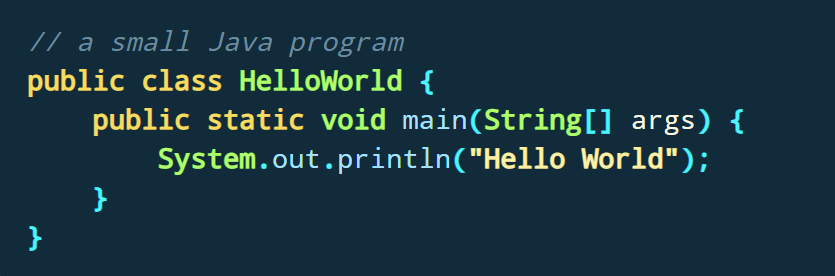
Hello world Java program
Installation of Java
Recommended Java version
It is recommended to use last least
the latest long-term release version of Java.
Currently this is Java 11.
Check installation
To run Java programs, you:
must have the Java runtime environment (JRE) installed
the Java executables must be available in your path environment
You can test if the JRE is correctly installed via a console. To open a console on Windows: Win+R, enter cmd and press Enter). Now type in the following command:

If the JRE is correctly installed, this commands prints information about your Java installation. In this case you can skip the Java installation description.
If the command line returns the information that the program could not be found, you have to install Java.
Install Java
For Microsofts Windows, Oracle provides a native installer which can be found on the Java website. It contains instructions how to install Java for all supported platforms.
Install Java on Ubuntu
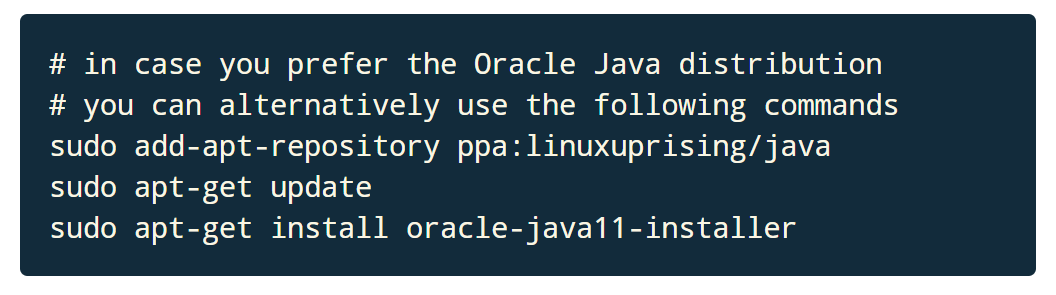
On Ubuntu you can install Java 11 via the following command on the command line. These commands might change over time, if they do not work anymore please Google for the installation.
Installation problems and other operating systems
If you have problems installing Java on your system, search via Google for How to install JDK on YOUR OS. Of course, replace YOUR OS with your operating system, e.g., Windows, Ubuntu, Mac OS X, etc. This should result in helpful links.